Sharing data with other users
GARRbox allows you to share individual files or entire folders between users registered to the service, and also allows you to share data with external users and with similar cloud services that support the Open Cloud Mesh protocol. Among these we can mention CERNbox, INFN-box, CNR-box, ENEA-box, SWITCH-Drive and SURF-Drive.
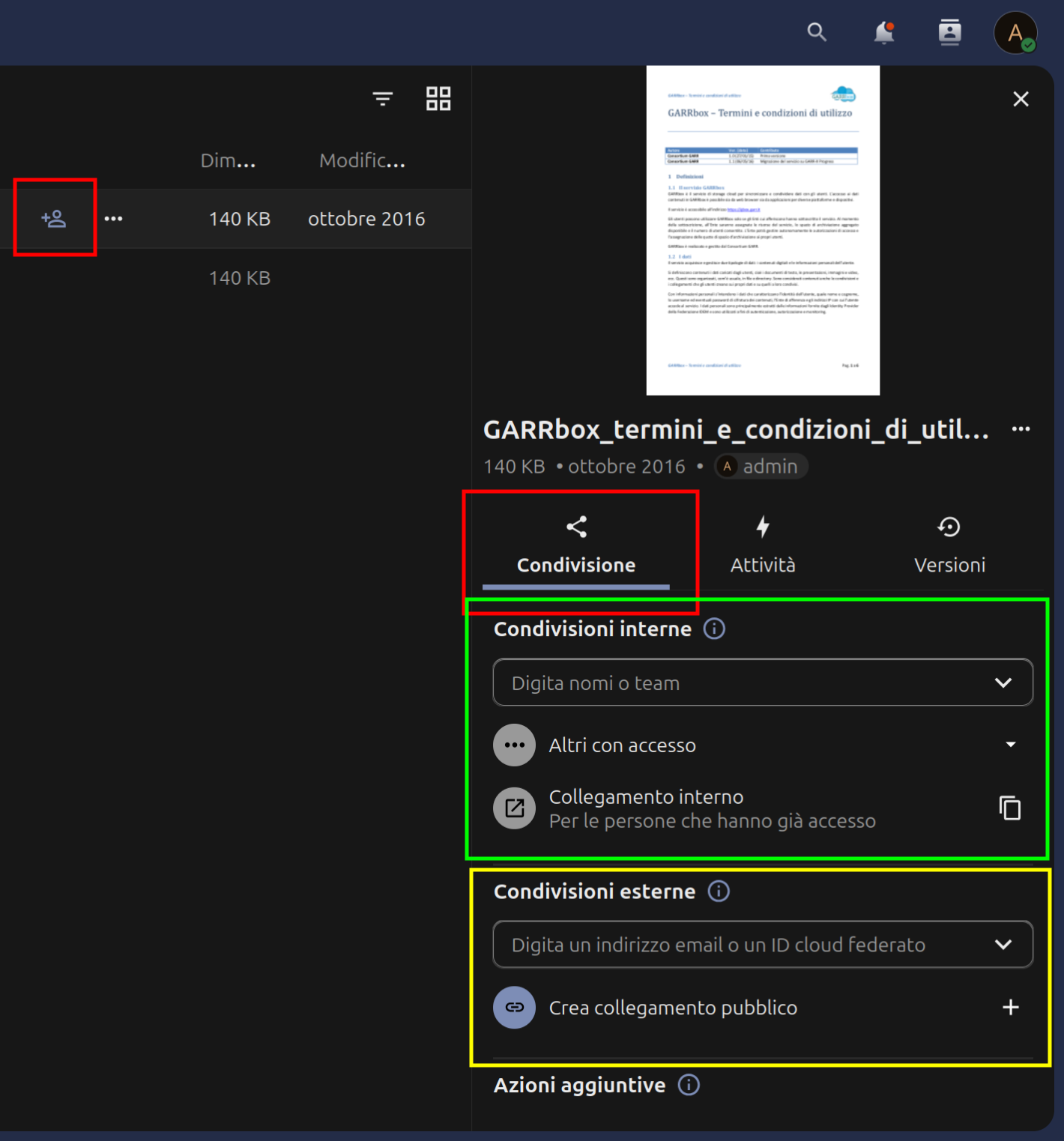
Quick sharing from the browser
Click on the sharing icon of a file or folder and choose the most suitable type: internal for GARRbox users, public link for external users.
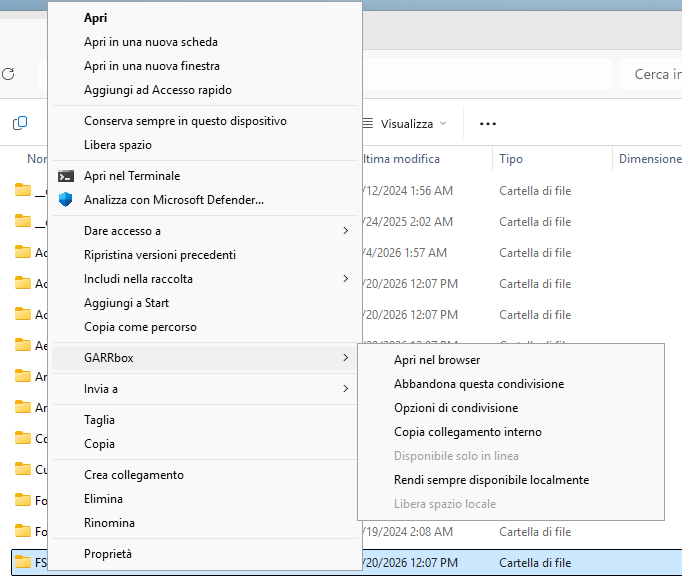
The same result can be obtained from the Desktop synchronisation clients by right-clicking on the file or folder inside the GARRbox folder, selecting "Show more options", then "GARRbox" and finally "Sharing options".
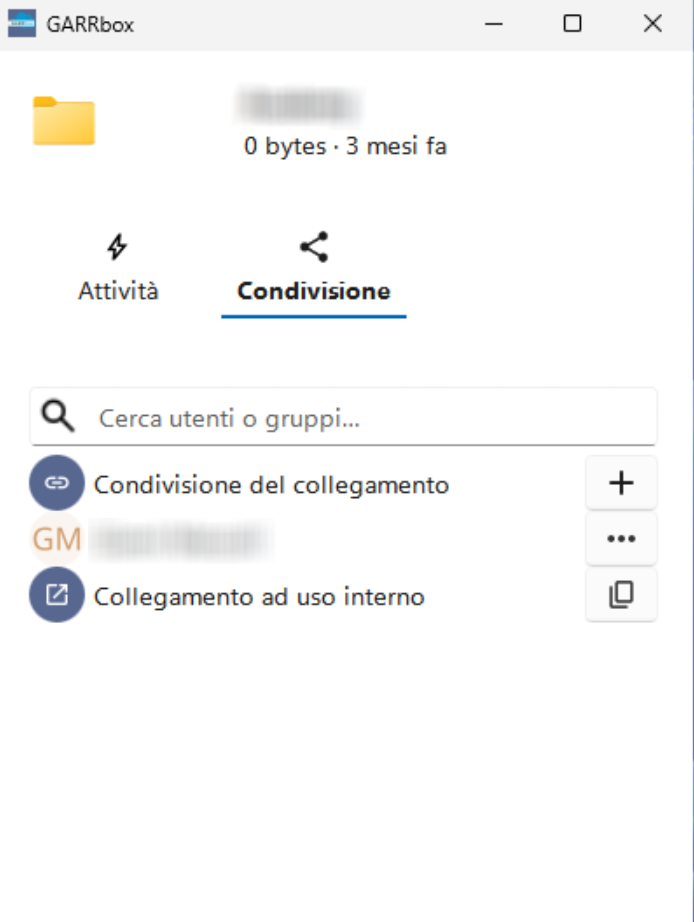
Internal sharing
Shares between GARRbox users allow fine-grained access permission control. For each user or group participating in a share it is possible to select the operations allowed on the data, including creating new data in the location, modifying existing data, and deleting it. It is also possible to allow re-sharing of data to third-party users (including external users). Given the wide possibility of delegating control over data in a share, the utmost care in choosing settings is recommended. A good rule is to grant participants in a share the minimum necessary permissions, to avoid unwanted actions. When creating a new share, the service allows notifying the data recipient with an email notification message.
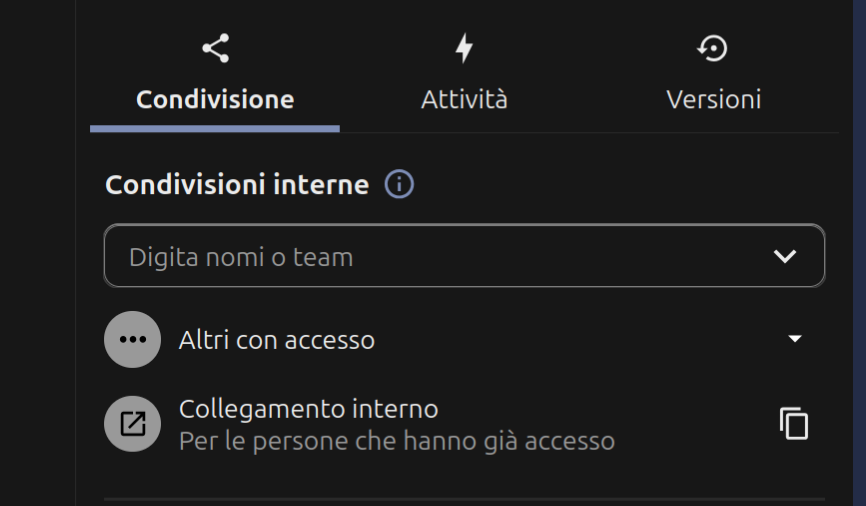
Internal share permissions
It is also useful to remember that subfolders of a share inherit the visibility properties from the parent folder that contains them.
Sharing with a public link
To share data with users who do not have access to the platform, GARRbox provides the "Create public link" option. Thanks to this function it will be possible to access the data via any browser through the address dynamically created by the service.
The following images show how to create a sharing with a public link, allowing even users not registered to GARRbox to receive and send data with you.
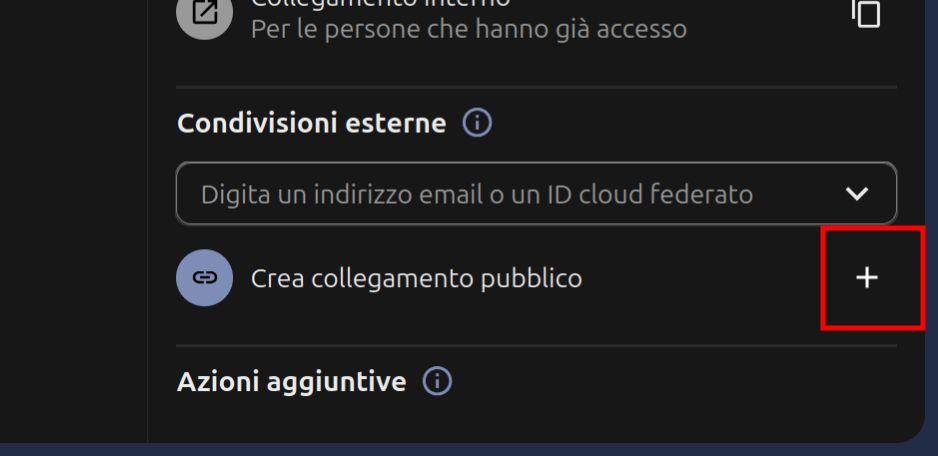
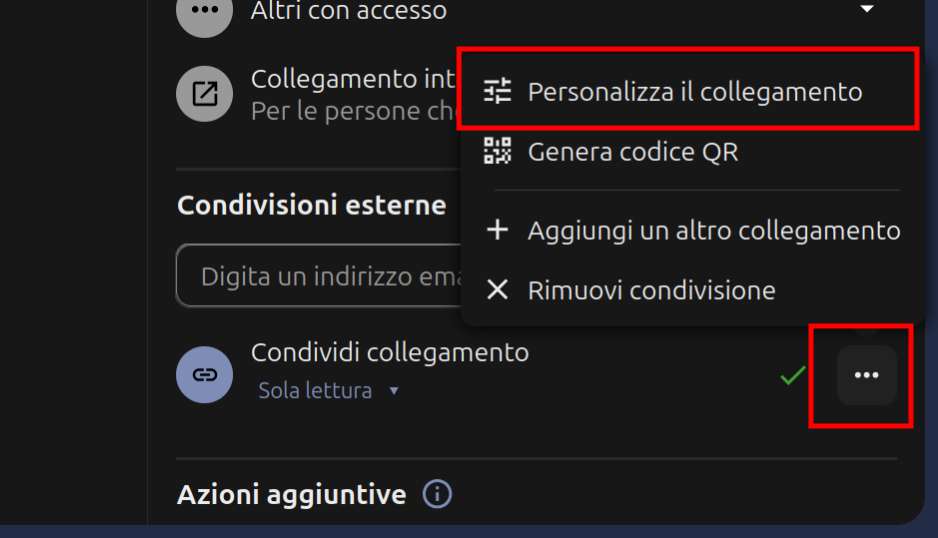
To ensure greater access control it is possible to protect link shares by adding an access password to only the data shared via public sharing, i.e. with users not registered to GARRbox, also indicating an expiry date for the link itself. After the specified date, the link will no longer be valid.
If the object of the link share is a folder, it is possible to enable the edit option. By doing so, users who know the share link will be able to upload new content to the area.
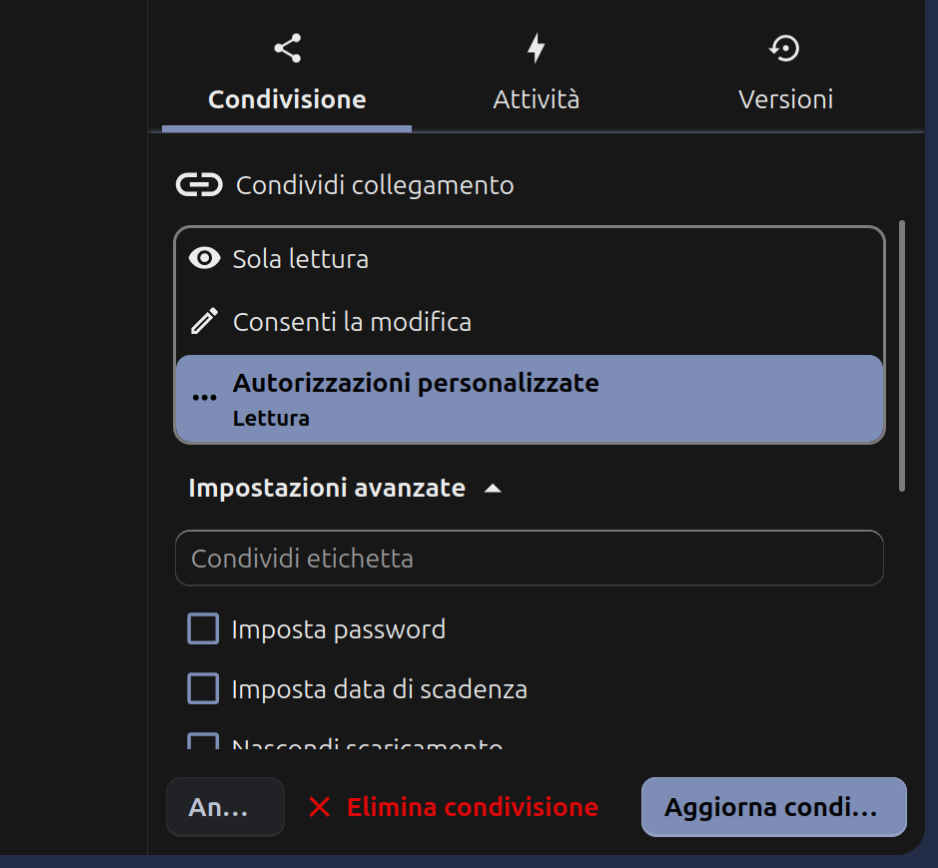
Monitoring access to shared data
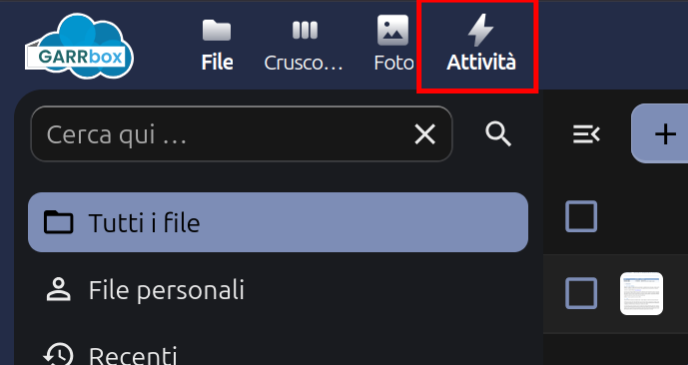
GARRbox offers different channels to keep track of operations involving your data. From the browser you can check what happens to the data you share with others and to that shared with you. The Activity application, accessible from the contextual menu at the top left, has exactly this purpose.
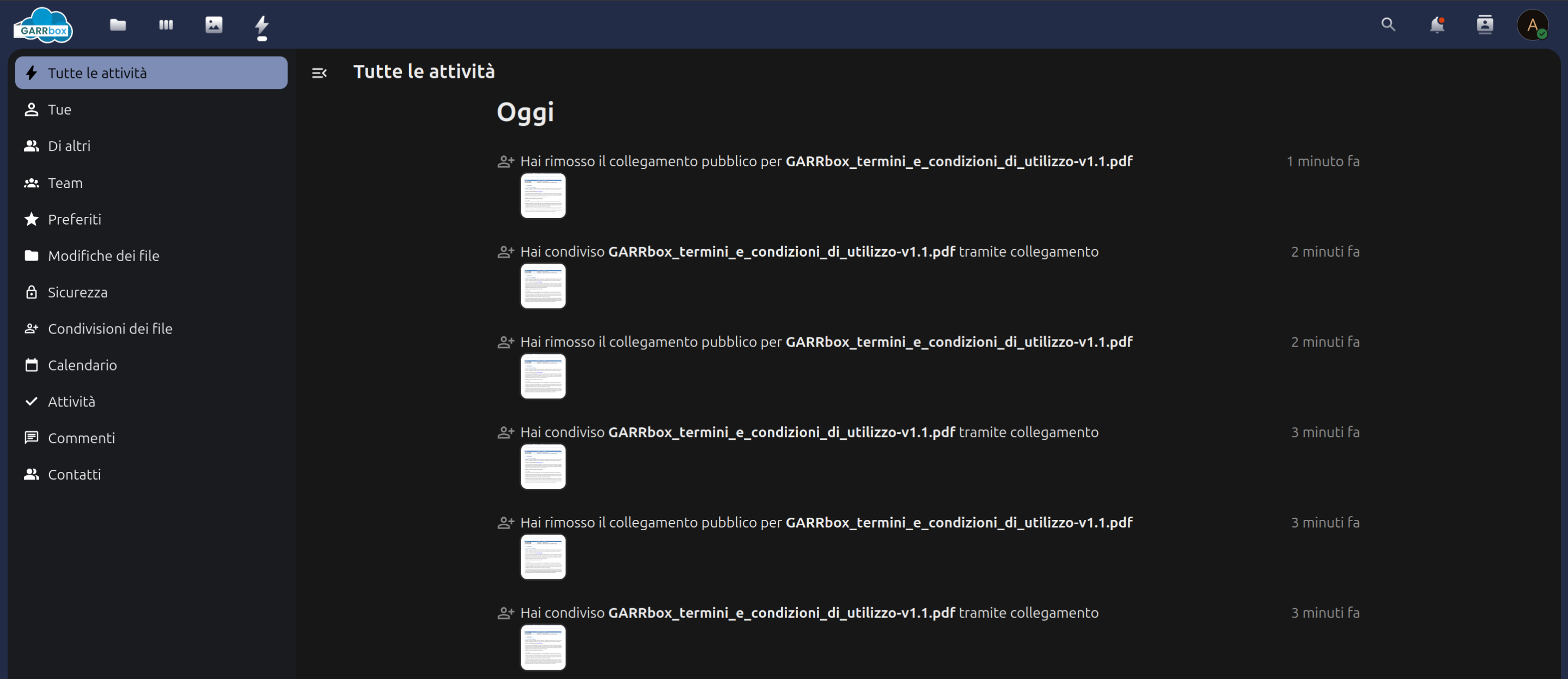
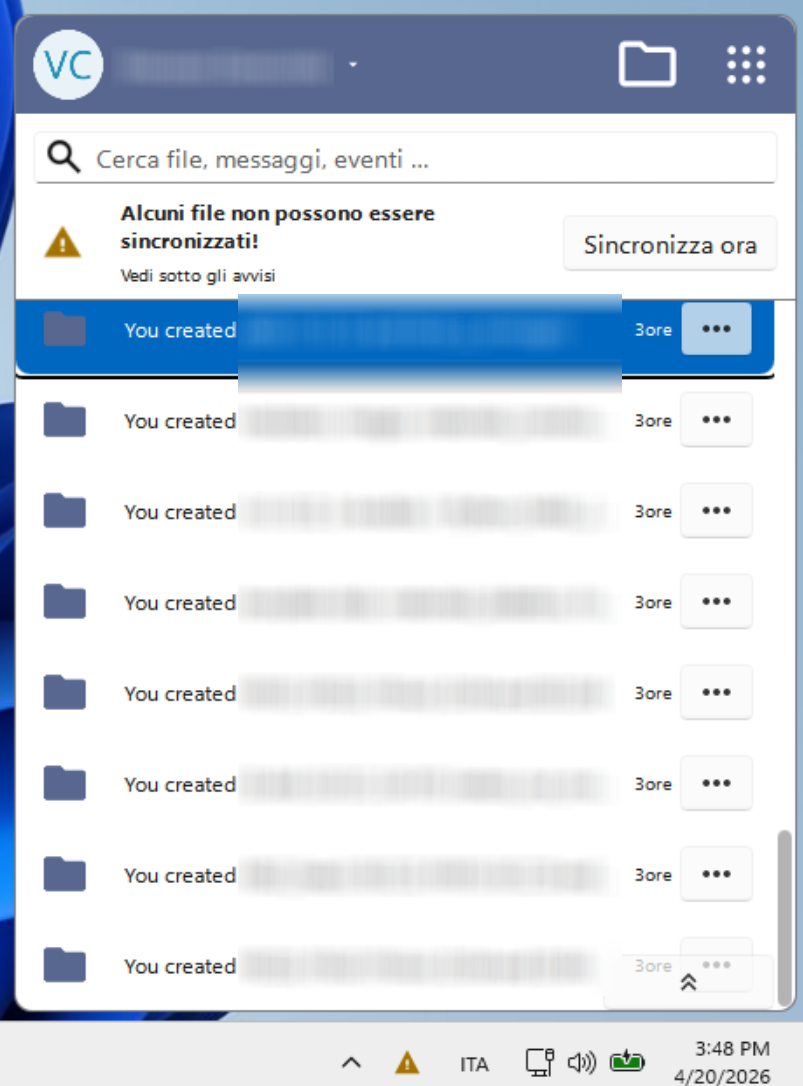
The same information is visible from the Activity panel of the synchronisation clients. Clients also report the status of data transfers to and from the GARRbox service.
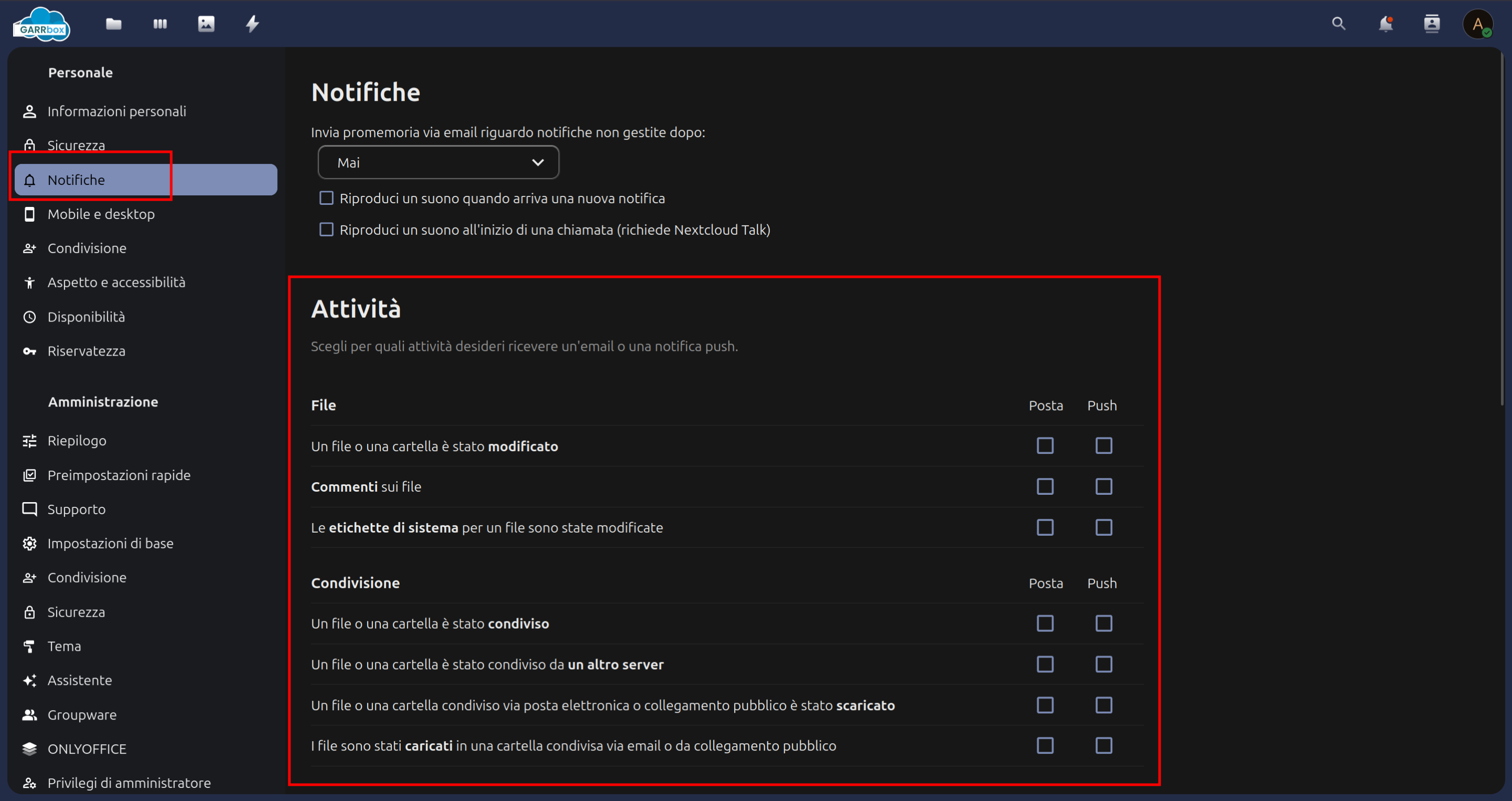
It is also possible to receive automatic notifications of actions on data. To enable notification messaging, access the Personal panel from the contextual menu at the top right. Go to the notifications menu and then to the activity section. Choose which events to receive notifications for and via which channel: email or push notifications.